How to change and view an Extension’s password
In order to change your extension’s password please follow the steps below:

You will be able to see the settings tab only if you have admin rights.
1. Navigate to "Settings", "Users & Permissions" and then click on "Extensions":
2. Click on the extension name or number you wish to edit:
3. In the new window, click on the "Generate New Secret" to reset the extensions password:
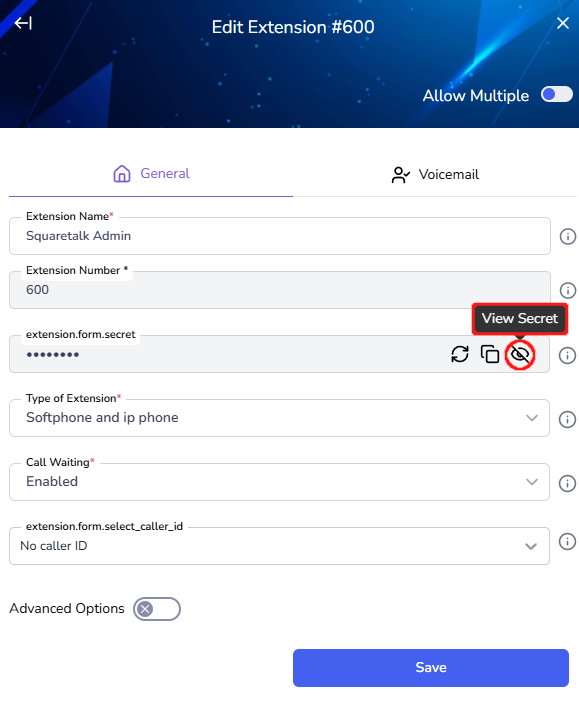
4. In order to view your new password, click on the "Show" button:
Related Articles
How to change and view an extension’s password
In order to change your extension’s password follow the steps below: 1. Navigate to "Settings" and then click on "Extensions": 2. Choose the extension you would like to change the password for and click on the on the right of it: 3. On the right side ...How to Change/Edit User’s Details
In order to edit user details, follow the steps below: 1. Go to "Settings" and click on the "Users" tab: 2. Find the user you would like to edit and click the on the right of it under the Action section: 3. From here you can edit the users Name, ...Change/Edit User’s Details
In order to a edit user details, please follow the steps below: 1. Navigate to "Settings", "Users & Permissions" and then click on "Users": 2. Click on the name of the user you would like to edit under the Name column: 3. From the new window, you can ...Agents View - Dashboard
This article will give you an overview of the dashboard from an Agents point of view as well as functionality: 1. Upon logging in you will be prompted to choose your Campaign: 2. After choosing your Campaign you will be presented with your dashboard ...How to Reset and Change Your Password
To reset your billing portal password please follow the steps below: 1. Navigate to the login page: https://portal.squaretalk.com/login and click on the "Forgot password?": 2. Enter your email address that you use to login to the Billing Portal with ...