Contacts
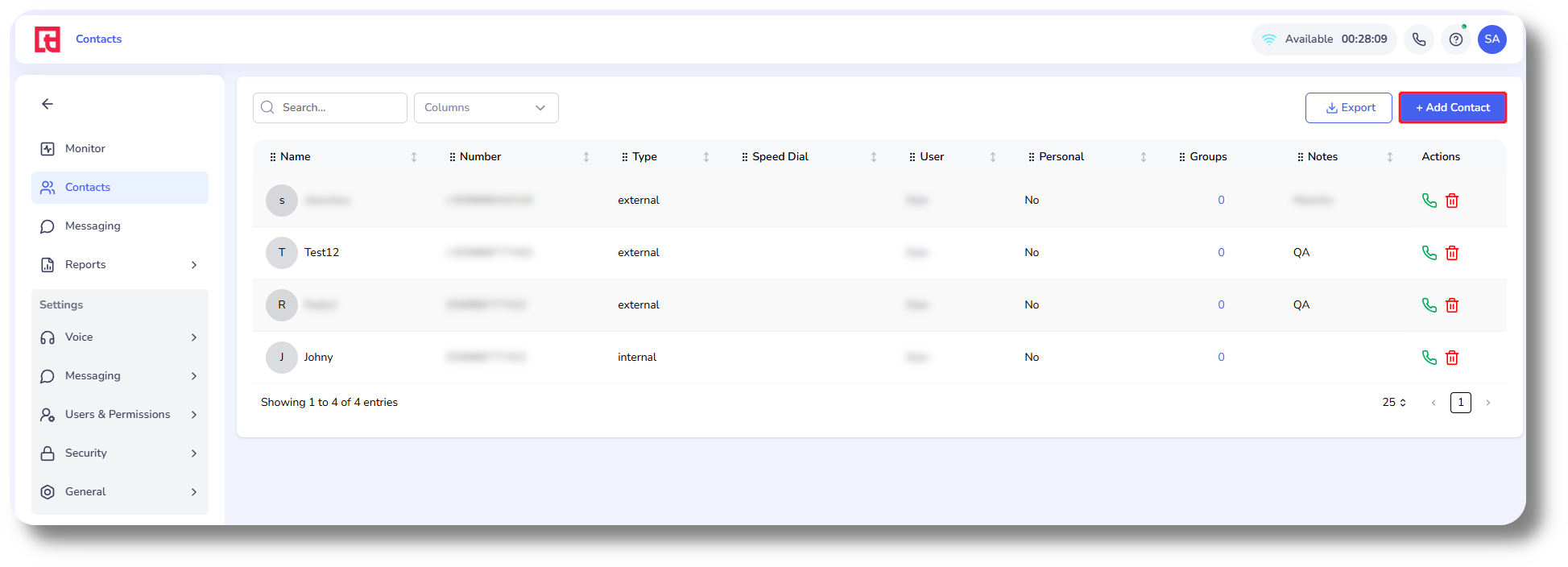
1. To add contacts click on Contacts from the menu on the left and click Add Contact:
2. Enter a name for your contact, specify the type whether it should be Internal (Extension) or External number.

If you receive Invalid phone number when entering the number, this means that the wrong type has been selected.
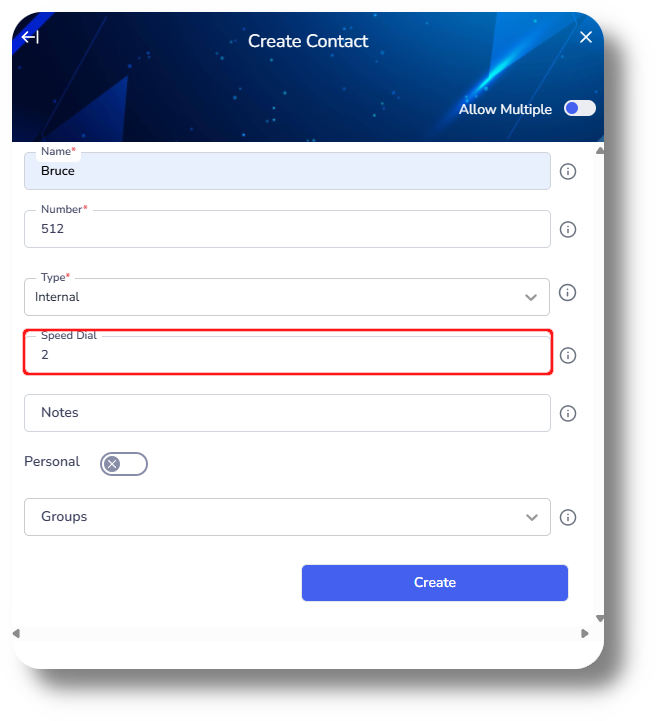
3. Set the speed dial number for this contact, not mandatory:
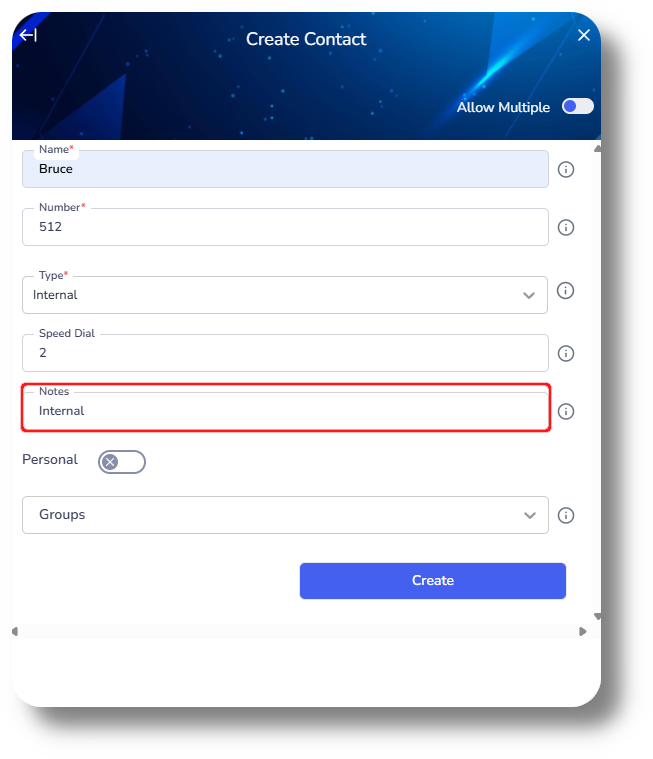
4. Set a Note, not mandatory:
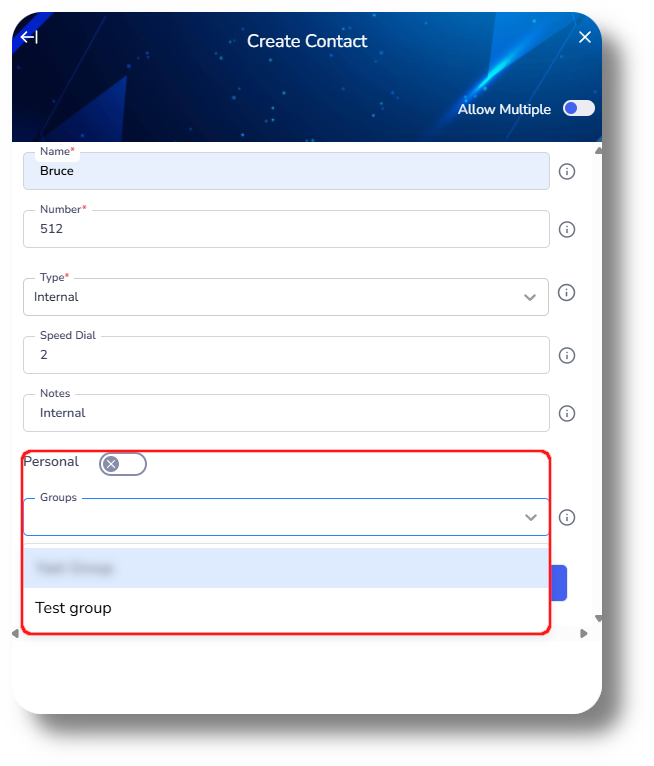
5. Lastly select whether this should be a personal or group contact, if you select a group it'll be visible to the members of that group. Finally click Create:
Related Articles
How to create an Announcement
To set and create an Announcement, please follow the steps below: 1. Navigate to the Voice section under Settings and then click on the Announcements section: 2. Create a new Announcement by clicking on the "Create new" button: 3. Modify the name of ...How to create and manage Users
This article will provide you an overview of the Users section and it's functionality as well as how to create users: 1. To create users navigate to the "Users" tab located on the left-hand side of your screen where the menu options are displayed: 2. ...Group Creation & Management
In order to create a group please follow the steps below: You will be able to see the settings tab only if you have admin rights. 1. Navigate to the Settings menu from the the left, and click on Groups under the Users & Permissions section: 2. Click ...Settings - Communication - Ext creation & Phone number management
This article will provide you an overview of the Communication section and functionality within the Settings of Matrix Extension Creation and management: 1. Navigate to your Matrix settings by clicking "Settings" on the left-hand side: 2. Under the ...Settings - Queues
To create a queue please follow the steps below: NOTE: You will be able to see the settings tab only if you have admin rights. 1. Click "Settings" to navigate to the settings page on the left hand side of the screen: (You will be able to see the ...