IP Management - Whitelist IP
This article will show you an overview of the IP Settings of Squaretalk Platform, as well as how to whitelist an IP:

You will be able to see the settings tab only if you have admin rights
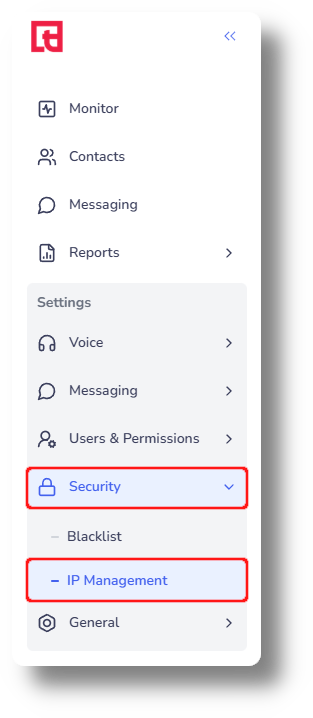
1. Navigate to Settings and then click on IP Management under the Security section:
2. Click "Create New" to whitelist a new IP:
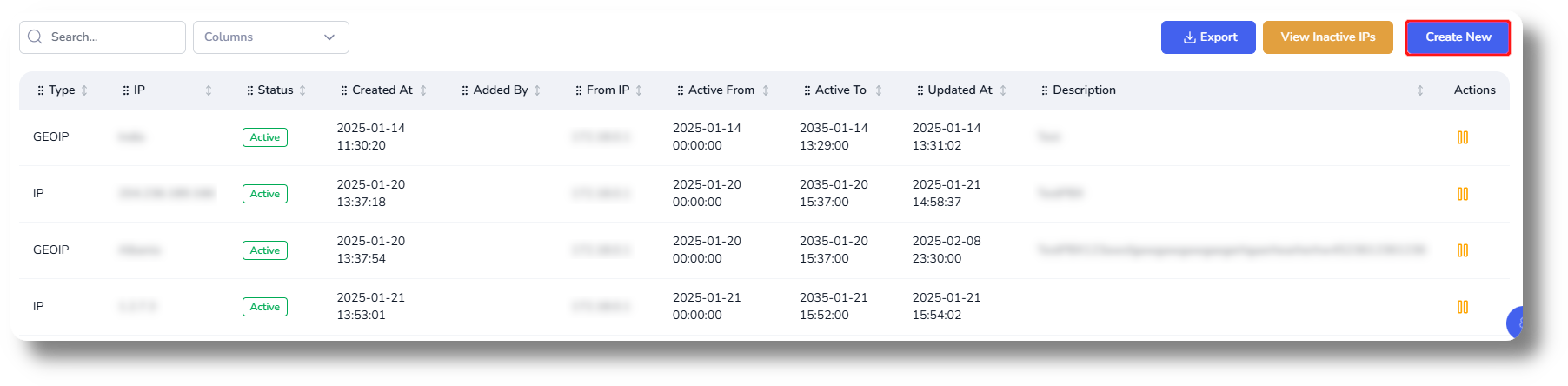
2. Click "Create New" to whitelist a new IP:
3. Enter the "IP" you wish to whitelist, as well as a short description in the "Description Field":
4. Select the dates this IP should be whitelisted for from the "Validity Date Range" section.

After this date, the IP will no longer be able to enter the system
5. Select the "Access Level" and click "Create" to whitelist the IP:
WEB: Allow from the browser without use any type of phone/phone application
PHONE: Allows access only for softphone or IP Phones
WEB & PHONE: Allows access from the browser and connecting a web phone
INTEGRATION: Allows browser access and API requests
ALL: Allows browser access, API, web phone, softphone and IP phone
PING: Allows testing the response from server ping
6. If you wish to whitelist a GEO IP then change the Type to Geo IP and select your desired country from the Country field:
7. Click "View Inactive IPs" to view the history of IPs that were whitelisted and are not anymore:
You can also restore it by clicking on the restore button on the right of the IP you wish to re-enable:
Related Articles
Whitelist IP
This article will provide you more details and information regarding how to whitelist an IP in Matrix: 1. Navigate to the Settings section and then Security tab: 2. Next click on "Create" under the IP List section: 3. Next input your IP you wish to ...Settings - IP/Whitelist IP
This article will show you an overview of the IP Settings of Axiom as well as how to whitelist an IP: NOTE: You will be able to see the settings tab only if you have admin rights. Additional Information: Every user must have their IP whitelisted in ...Settings - Customization
This article will provide you an overview of the Customization settings of Matrix: Custom Fields 1. To create and manage Custom Fields, navigate to the Matrix settings by selecting "Settings" on the left-hand side of the menu: 2. Access the custom ...Settings - Communication - Ext creation & Phone number management
This article will provide you an overview of the Communication section and functionality within the Settings of Matrix Extension Creation and management: 1. Navigate to your Matrix settings by clicking "Settings" on the left-hand side: 2. Under the ...Queue Creation & Management
To create a queue please follow the steps below: 1. Navigate to Settings on the left and click on Voice then navigate to the Queues section: 2. Click "New Queue" to create a new queue, you can also edit an existing queue by simply clicking it's name: ...