Starter Toolkit: Your Top Bar Essentials in Squaretalk
Starter Toolkit: Your Top Bar Essentials in Squaretalk
Before you start making calls, handling chats, or managing your team, it’s worth getting familiar with your Top Bar. It’s always visible and gives you quick access to the tools you’ll use every day.
1. The Status button shows your current agent status (for example: Available, Break, or Offline). It controls whether you can receive calls and chats.

2. The Phone icon in the top menu gives you access to calling, whether you’re using a Web or SIP extension. Hover over the phone icon to see your extension number and connection status.
What happens when you click it:
- Web extension → Opens the Webphone directly inside Squaretalk
- SIP extension → Opens your default softphone. If you have multiple softphones installed, you’ll be prompted to choose one.
3. System Check button shows your current system latency and helps you quickly check if your setup is working properly (internet, microphone, operating system, etc.)
4. Notifications Bell: all platform alerts appear here (system updates, feature announcements, login/logout alerts, etc.)

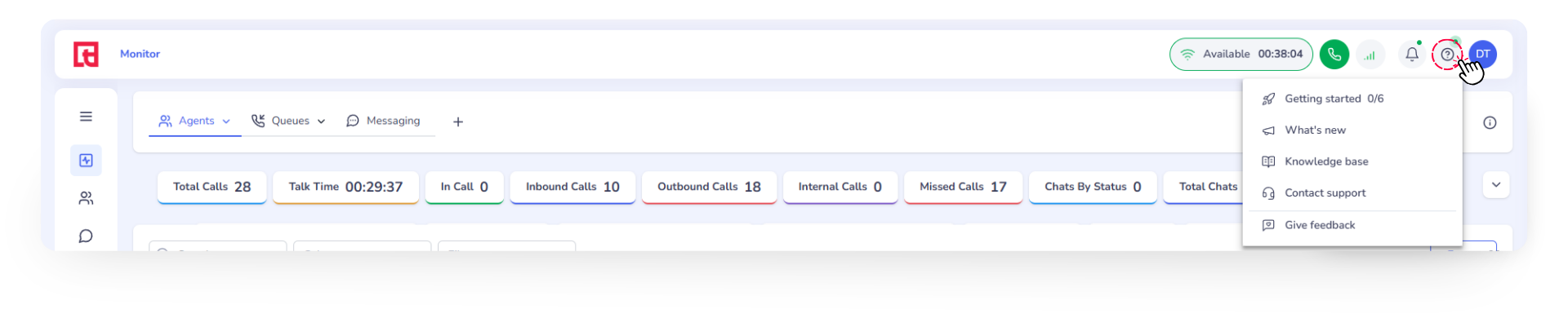
5. Help Button (Support & Knowledge Base): your shortcut to assistance when you need it. Open the Squaretalk Knowledge Base, access onboarding guides, or contact our support team.
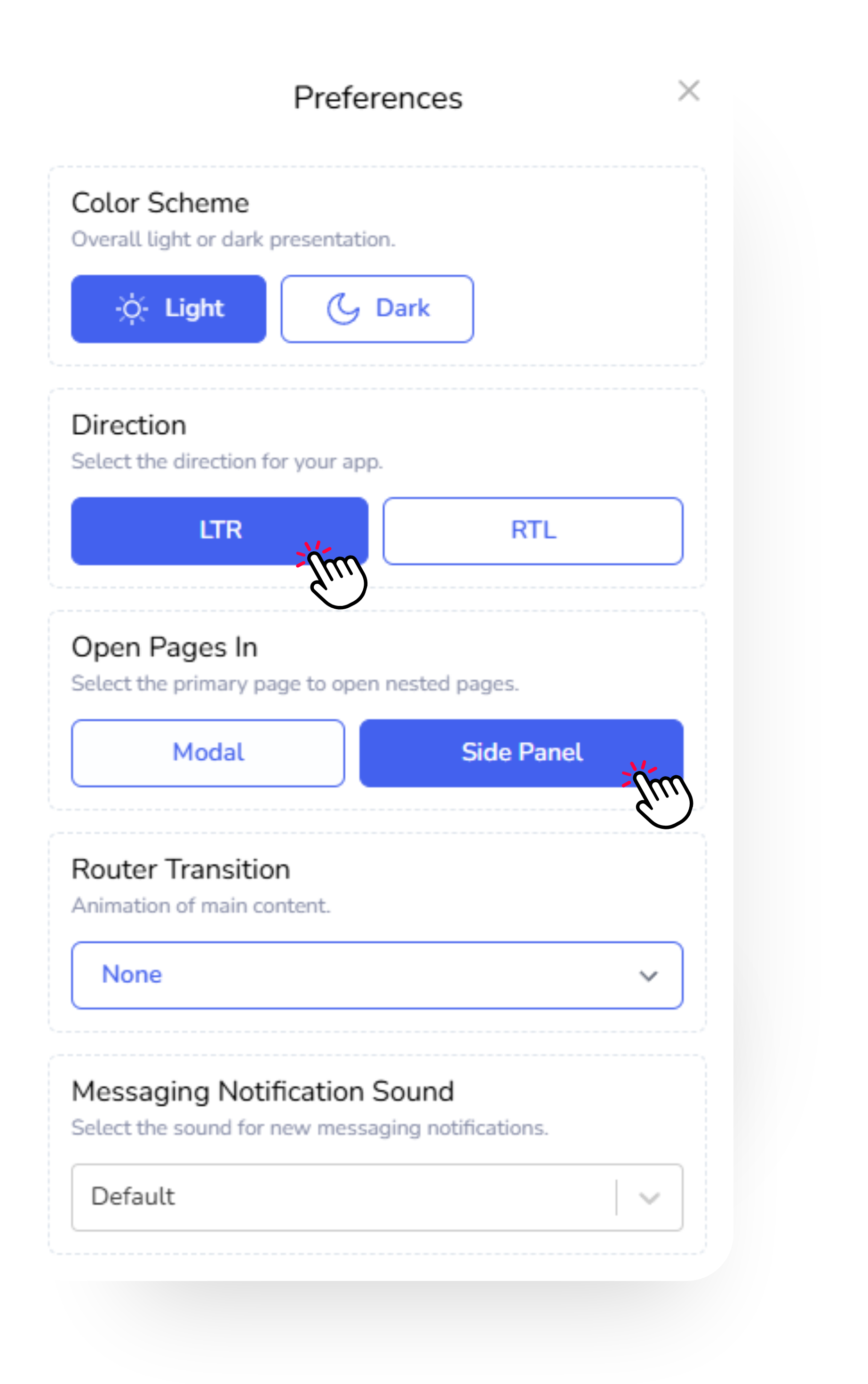
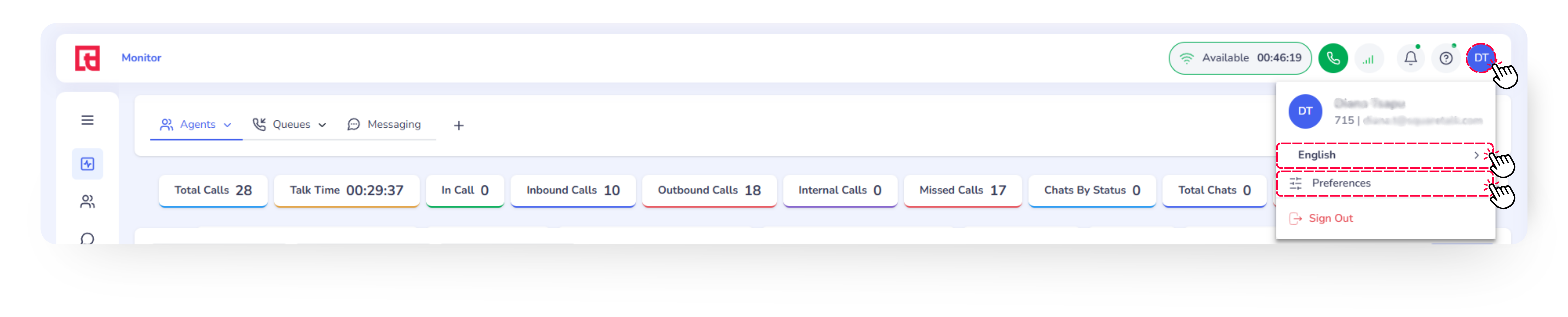
6. Account Settings (Preferences & Personalization). Change the language. Configure the color mode, layout direction (LTR / RTL), page opening behavior (modal/side panel) under Preferences.
7. Side-by-Side View lets you open two detailed information panels on the main screen without losing your current page. Just click on any item in the platform to open the side panel and enable the view.