Customize Interface
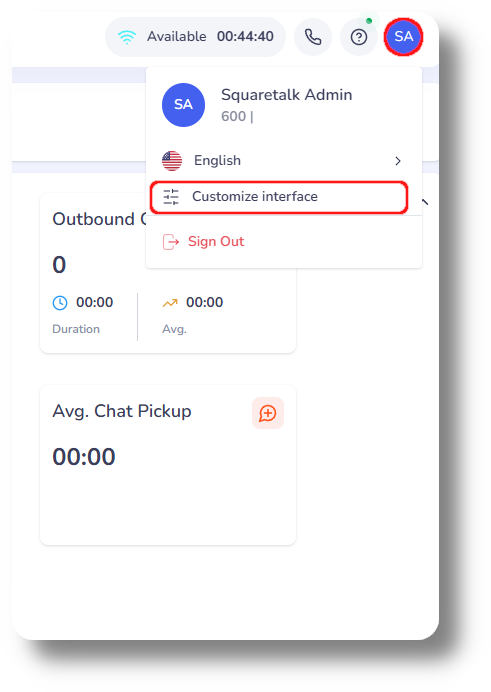
1. To customize your interface click on your profile icon on the top right and select Customize Interface:
2. From here you can specify the color scheme:
3. Change the layout style, Box will move the entire UI to the middle of the screen whilst Full will keep it full screen:
4. The direction will move to the menu either to the left or right of the screen:
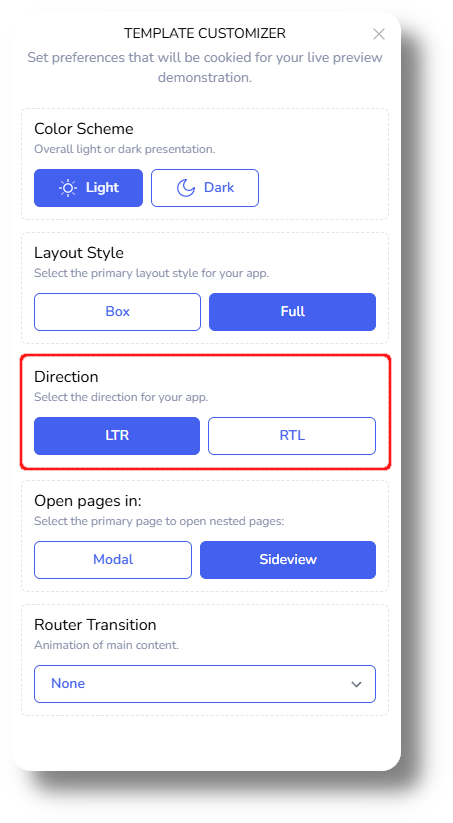
5. You can also specify how the options should open, sideview will open the to the side and model will open them in a separate window in the middle of the screen:
6. Finally, the router transition will change the animation of pages:

Related Articles
Softphone Settings
In order to access the softphone settings, simply click on the "Menu" button, represented by three horizontal stripes, located in the top right corner of your softphone interface. From the dropdown menu that appears, select the "Settings" option to ...Queues
This article will provide you more information about the Queues section and functionality: 1. Navigate to the Queues page by clicking on 'Queues': 2. Here you can monitor the 'Total calls' across all your queues: 3. Here you can monitor how many of ...General Settings
This article will provide you with an overview of the General Settings of Axiom: You will be able to see the settings tab only if you have admin rights. 1. Navigate to the Settings option in the left-hand menu to access configuration settings: 2. ...Reports - Phone Numbers
This article will provide you more information and general functionality for the Phone Numbers section in the Reports. 1. Navigate to the "Reports" section from the left and then the "Phone Numbers" tab: 2. From here you can monitor the Total, ...Campaigns
This article will provide you an overview of the Campaigns section and it's functionality: The Campaigns are made up of lists that contain leads. Which you can then assign agents utilizing the Matrix's predictive dialer to call these leads. You can ...