Calls Report
Calls Report
The Calls Report in the Squaretalk Platform gives you a full overview of all call activity in your system.
It helps supervisors and admins track:
inbound and outbound calls
answered vs missed calls
call duration and performance
agent activity and call outcomes
call recordings (if enabled)
This guide explains how to use the Calls Report and how to filter results effectively, including the Effective Calls filter.
1. To find the Calls Report, go to the Reports tab in the main menu and select Calls.
You will see a detailed list of all calls with related call statistics, based on your selected date range.
💡Useful Tip 1: Customize your view by setting the date range, organizing the columns with drag and drop, selecting/deselecting the specific columns, or filtering out by groups/queues/call type/answer status/effective calls/etc.
💡Useful Tip 2: Adjust the timezone if needed so the system displays the data accordingly. (This will not change or impact the server’s timezone set in the Settings → General → System Settings)
What You Can See in the Calls Report
2. The Calls Report includes detailed information on each call, such as:
source (caller) and destination number/extension
call type (inbound/outbound/system)
call status (answered, no answer, etc.)
call duration & timestamps
wrap-up status & notes
agent name & queue details (if applicable)
3. On the right side of the table, check the Actions column for:
- Accessing the Audio Player and listening to the call recordings
- AI Assistance: call summary, sentiment analysis, and transcript
Playback Features
When playing a recording, you can:
Listen to the full call automatically
All call segments play in sequence as a single conversation
Track playback progress
A progress indicator shows which segment is currently playing (e.g., 1/3)
Control playback speed
Adjust speed from 1x to 3x depending on your preference
Download the recording
Use the Download option inside the player to save the recording locally
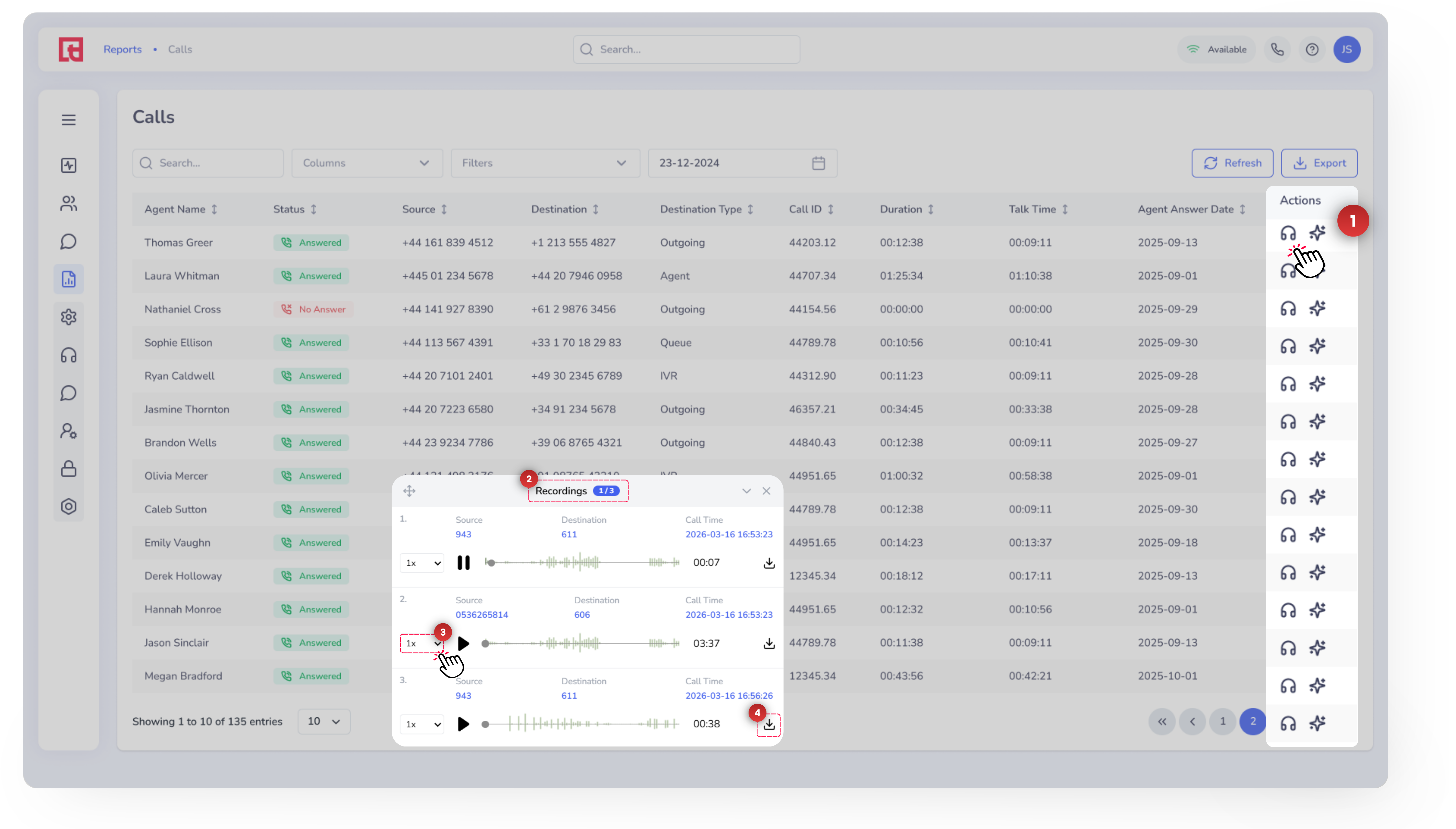
When playing a recording, you can:
Listen to the full call automatically
All call segments play in sequence as a single conversationTrack playback progress
A progress indicator shows which segment is currently playing (e.g., 1/3)Control playback speed
Adjust speed from 1x to 3x depending on your preferenceDownload the recording
Use the Download option inside the player to save the recording locally
AI Summary
The AI Summary provides a short overview of the call, including:
main topic(s) discussed
customer intent
key outcomes or next steps
Transcript
The transcript provides a written version of the conversation recording (if enabled).
📌 Note 1: AI Summary and Transcript availability depend on your plan and configuration.
📌Note 2: Call recordings shown in the Calls Report depend on the extension’s recording settings. If recordings are disabled for a specific extension or call type, those calls will not have recordings available in reports.
📌 To learn how to manage recording settings in detail, see: How to Configure Call Recording Settings.
What Is the “Effective Calls” Filter?
The Effective Calls filter is used to display only meaningful calls that were actually connected or relevant for reporting, and make sure you remove wrong numbers or immediate hang-ups.
4. To use the filter, locate it at the top of the report in the Filters drop-down menu and click on the edit button to set the min & max duration.
Create or Edit a Contact from the Calls Report
5. Click on the Source or Destination phone number to create a new contact (if the number does not exist yet) or edit an existing contact.